What did AI actually solve?
Keep an edit only after checking the altered area against the original.
What you can do
Clean Up is an existing Apple Intelligence feature. The Mac Photos workflow lets you click, brush or circle a background distraction to remove it. 01 / Source noteRemove distractions and imperfections from your photos on MacApple Support · Current macOS 27 guide; checked November 14, 2026What the source supportsDocumentation-based practical guide · Not firsthand testedKeep in mindAvailability varies by language and region. Apple says the feature does not work on devices purchased in China mainland, or on other supported devices there when the Apple Account region is also China mainland.Read the original source ↗
What this could change for you
Hypothetical example: a discarded cup distracts from your own garden photo. Try removing only the cup, then check the nearby leaves and paving. This suggested exercise has not been performed.
These instructions follow Photos on macOS 27. Use an Apple Intelligence-compatible Mac, such as an M1 or later model, with matching supported device and Siri languages. Apple lists up to 8 GB or 14 GB of model storage depending on the Mac.
Try it yourself
Try one small background edit
Use Photos on macOS 27 on an Apple Intelligence-compatible Mac, such as an M1 or later model. Match the device and Siri languages to a supported language and check regional availability and model-storage requirements. Daily usage limits may apply; no unlimited-free-use promise.
- In Photos, select your own photo and choose Image > Duplicate 1 Photo to work on a copy. Open the copy and click Edit.
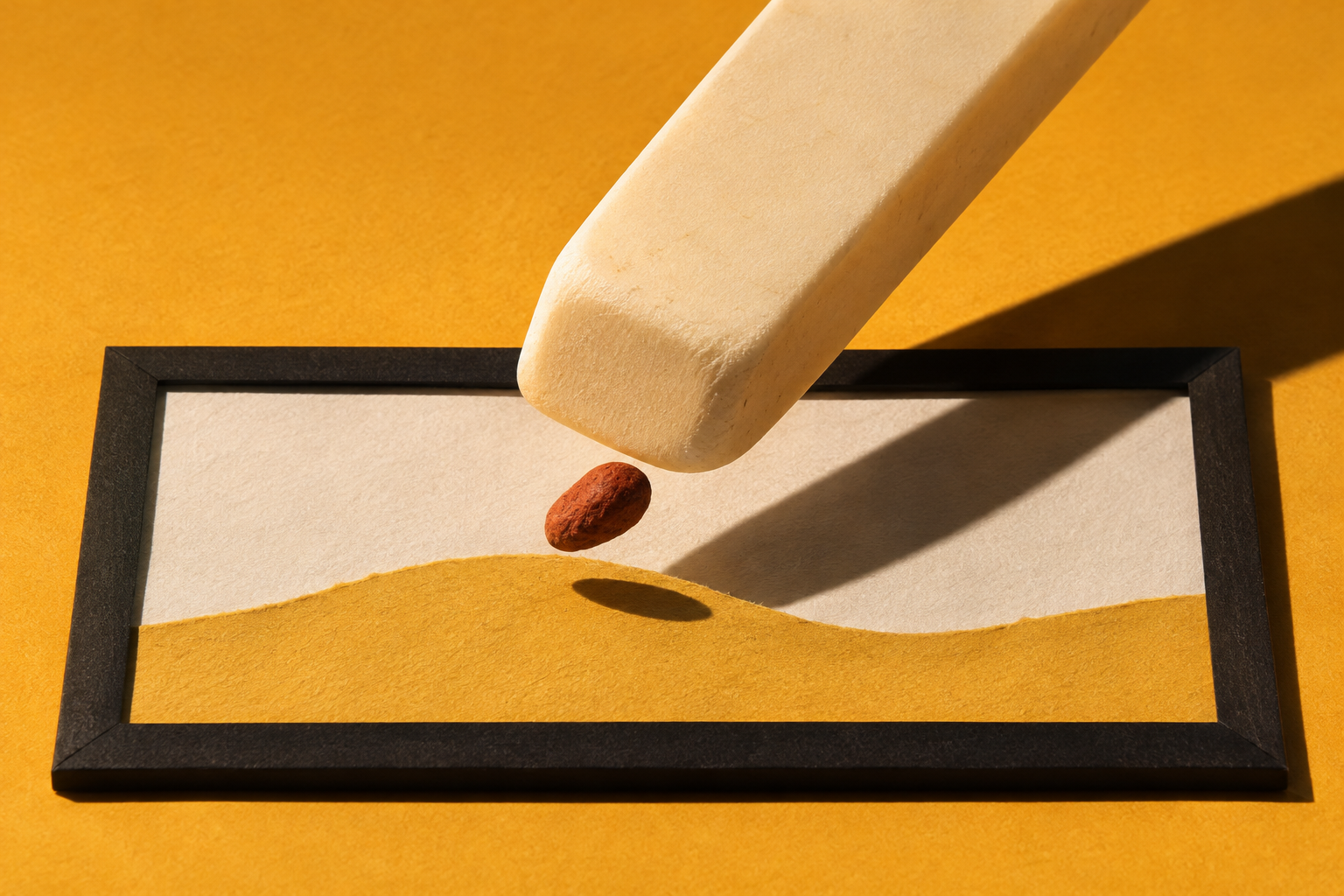
- Choose Tools > Clean Up, then the control below Erase. Adjust the brush size if needed, and click, brush or circle one distracting background object.
- Inspect the changed area. Hold M while editing to compare with the original. Use Edit > Undo for the last change, or Image > Revert to Original for all changes. Click Done when satisfied.
What to watch for: Check nearby textures and edges; keep the original if the edit looks wrong. Avoid brushing over faces, which may become pixelated.
Read Apple’s Clean Up instructions ↗Suggested activity. Official guidance checked .
What it does not prove
Availability varies by language and region. Apple says the feature does not work on devices purchased in China mainland, or on other supported devices there when the Apple Account region is also China mainland.
Daily limits may apply to intelligent photo-editing features that use server-side models. Apple says expanded access will carry a fee in the future; do not assume unlimited access or offline processing.
Brushing over a face may pixelate it. Choose a non-sensitive personal image and avoid edits that misrepresent events or another person.
Primary sources
Remove distractions and imperfections from your photos on Mac
Apple Support · Current macOS 27 guide; checked November 14, 2026